Preventing spam with reCAPTCHA v3
Small Business and aboveLast updated:
This feature is available on the Formii Pro Small Business plan and above.Compare plans
What you'll learn
- See how reCAPTCHA v3 helps stop automated spam submissions on your forms.
- Create keys in Google and register them in Formii.
- Understand the Score Threshold so you can block spam without turning away real inquiries.
What reCAPTCHA v3 is
reCAPTCHA v3 is a spam protection service from Google. Visitors never have to tick an “I’m not a robot” box or pick out pictures.
When someone submits your form, Google rates how likely the visitor is to be a human on a scale from 0.0 to 1.0. A score close to 1.0 means the visitor is likely a human. A score close to 0.0 means the submission is likely automated.
Formii accepts the submission when the score is at or above the Score Threshold. If the score is lower, Formii rejects the submission and the form shows an error.
This feature is available on the Formii Pro Small Business plan and above. When reCAPTCHA is on, Formii loads a Google script.
Before you start
You need two things.
- A WordPress site with a Formii Pro license on the Small Business plan or above
- A Google account
On a plan that does not include reCAPTCHA, you can open the settings screen but you cannot use the fields. Saved settings do not take effect either.
Create keys in Google
To use reCAPTCHA, create two keys for your site in the Google reCAPTCHA admin console.
- Sign in with your Google account and open the reCAPTCHA admin console.
- Register a new site. Choose reCAPTCHA v3 as the type.
- Enter the domain of the site that hosts your form, then register it.
- Copy the Site Key and the Secret Key. Do not share the Secret Key with anyone.
Google may change how its console looks. Check Google’s own documentation for the latest screens.
Set it up in Formii
- In the WordPress admin, open Inquiry Management → Settings.
- Open the reCAPTCHA v3 tab.
- Turn on “Enable reCAPTCHA v3”.
- Paste the keys from Google into “Site Key” and “Secret Key”.
- Change “Score Threshold (0.0–1.0)” if you need to. The default is 0.5.
- Click “Save changes”. When you see “Settings saved”, you are done.
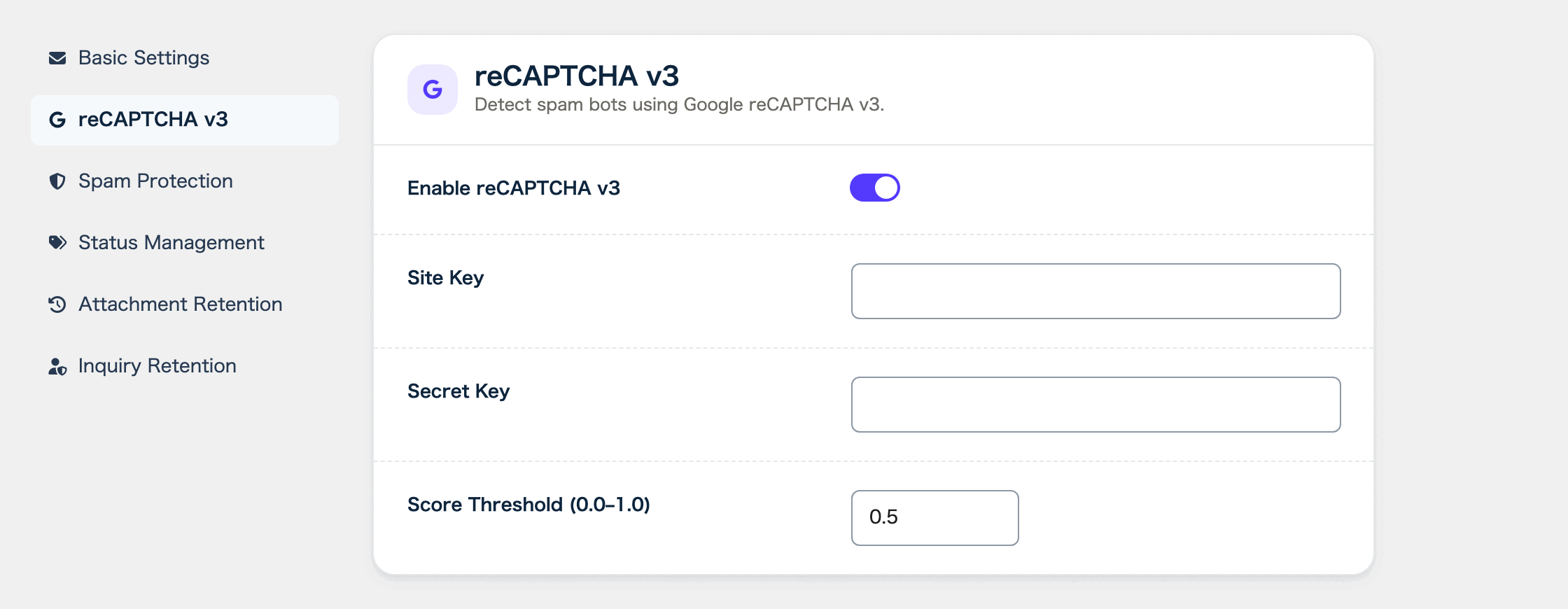
Even when the switch is on, reCAPTCHA does not work if the Site Key or the Secret Key is empty. Fill in both.
How to choose a Score Threshold
The Score Threshold is the lowest score Formii accepts. You can enter a value from 0.0 to 1.0, in steps of 0.1.
- A higher value is stricter. It blocks more spam, but it is also more likely to block real inquiries.
- A lower value is more lenient. Real inquiries get through more easily, and so does more spam.
We recommend starting with the default of 0.5 and raising it a little at a time if spam keeps coming in.
Check that it works
- Open the page that has your form while logged out, or in a different browser.
- Fill in the form and submit it.
- Confirm that the submission completes and that the inquiry appears in the Inquiry Management list.
A submission whose score is below the threshold is not accepted. The visitor sees “Security verification failed. Please try again later.” If real inquiries get this message, try lowering the Score Threshold.
FAQ
- Is reCAPTCHA v3 free to use?
- On the Formii side, it is available on the Small Business plan and above. For Google’s reCAPTCHA terms and pricing, check Google’s documentation.
- A real visitor says they cannot submit the form. What should I do?
- Lower the Score Threshold on the reCAPTCHA v3 tab in Settings. The default is 0.5. If that does not help, check that the Site Key and Secret Key are correct and that the domain registered with Google matches your site.
- Can I use reCAPTCHA together with other spam protection such as the honeypot?
- Yes. Formii checks each protection you have turned on.
Related articles
This feature is available on the Formii Pro Small Business plan and above.
You can start with the free version of Formii. Compare features and prices for each plan on the pricing page.