How to view and manage incoming inquiries
Last updated:
What you'll learn
- See how to review the inquiries your forms receive in one list.
- Narrow the list by form, keyword, read status, or date.
- Learn how to open an inquiry, how read and unread statuses change, and how to delete one.
Open the inquiry list
Every inquiry sent through your forms appears in the Inquiry List. You can use this screen in the free version.
- In the WordPress admin, open Inquiry Management → Inquiry List.
- Each inquiry is shown as one row. A page shows 20 inquiries.
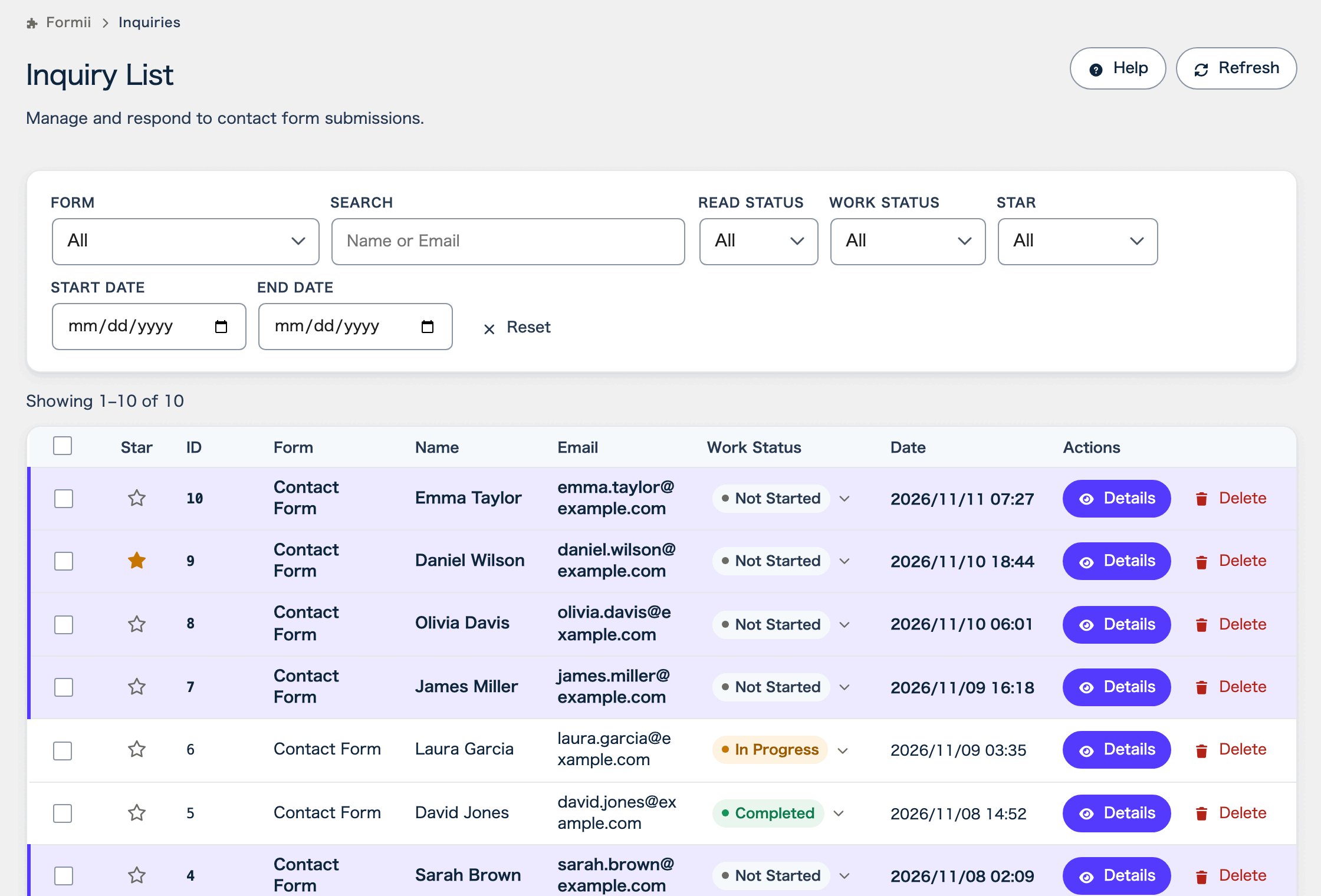
The table has these columns.
- “ID” is the number of the inquiry.
- “Form” shows which form the inquiry came from.
- “Name” and “Email” show who sent it.
- “Date” shows when it was sent.
- “Actions” has the “Details” and “Delete” buttons.
When no inquiry has arrived yet, you see “No inquiries yet”. Click “Refresh” at the top of the screen to load the latest data.
With Formii Pro, the list gets more columns and features. For example, the “Work Status” column is available on the Small Business plan and above. See Status management and internal notes for how it works.
Filter the list
Use the fields above the list to show only the inquiries you want. There is no Search button. The list updates as soon as you change a condition.
- “Form” lets you pick a form. Only inquiries from that form remain. The default is “All”.
- “Search” takes a keyword. Formii looks for it in “Name or Email”.
- “Read Status” lets you choose “All”, “Unread”, or “Read”.
- “Start Date” and “End Date” set the range of dates. You can fill in only one of them.
When a filter is on, a count such as “3 results” appears above the table. Without a filter, you see a range such as “Showing 1–20 of 45”.
Click “Reset” to clear every condition. If the Start Date is later than the End Date, you see “Set the start date before the end date.” Fix the dates to continue.
When nothing matches, you see “No inquiries match your filters”. Click “Clear filters” to return to the full list.
How read and unread work
A new inquiry is “Unread”. When you open its “Details”, it automatically becomes “Read”.
If you want to come back to an inquiry later, you can set it to “Unread” again. Click “Mark as unread” in the details screen. Filter “Read Status” by “Unread” to list only the inquiries you have not handled yet.
View the details
- In the list, click “Details” on the inquiry you want to see.
- The “Inquiry Details” screen opens. The date sent and the “Read Status” appear at the top.
- Check what the sender entered under “Submitted Content”.
- Close the screen when you are done.
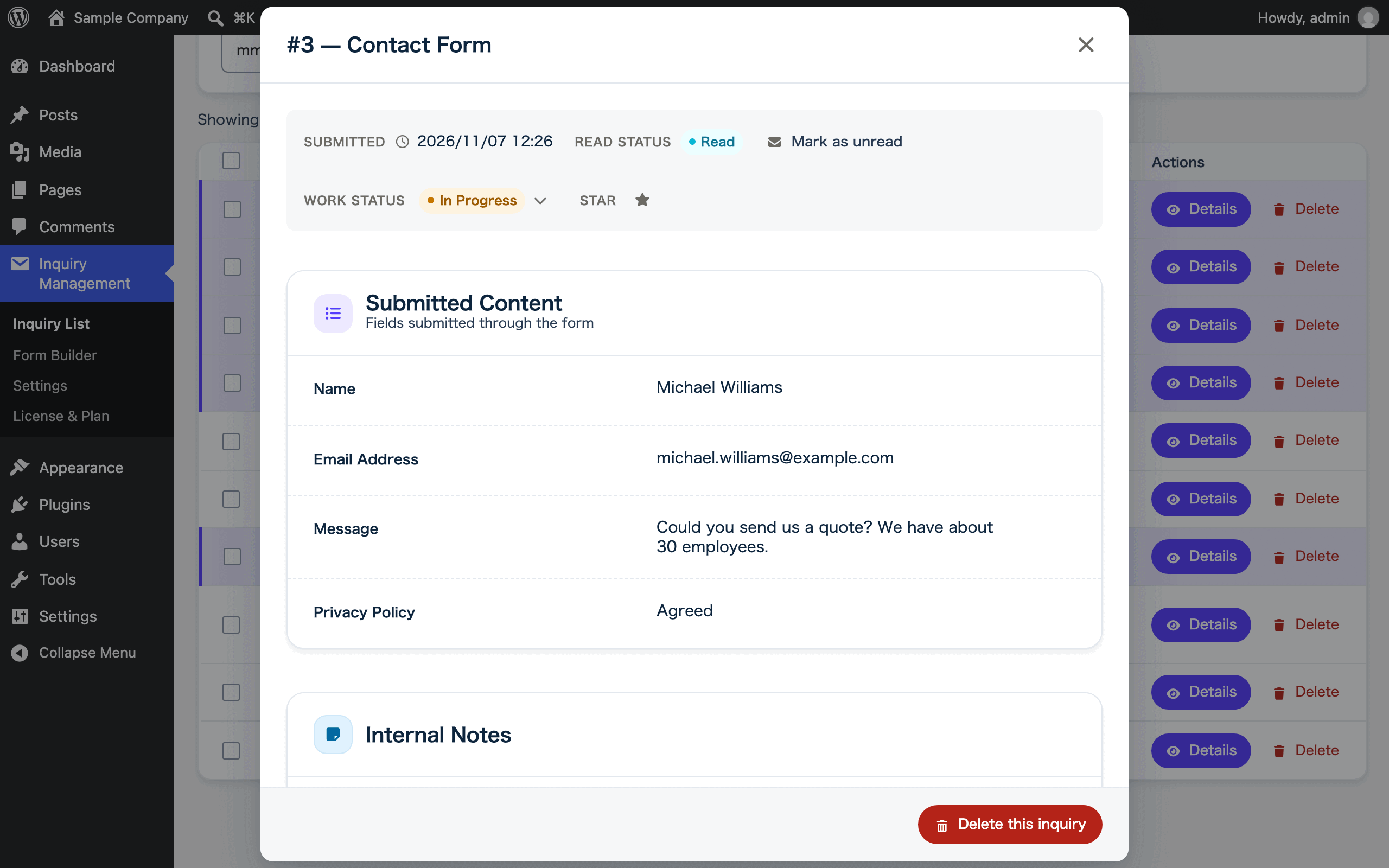
When files are attached, they appear under “Attachments”. If you turned on saving “Sender technical information”, “Technical Information” shows the sender’s “IP Address” and “User-Agent”.
Delete an inquiry
- In the list, click “Delete” on the inquiry you want to remove. In the details screen, click “Delete this inquiry” instead.
- A confirmation appears: “Delete the inquiry from “(sender name)”? This cannot be undone.”
- If you are sure, click “Delete”.
A deleted inquiry cannot be restored. Save any data you need first.
FAQ
- Who can see the inquiries?
- WordPress users with the Administrator role can see the list and the details. The Inquiry Management menu does not appear in the dashboard for Editors or Authors.
- An inquiry became “Read” when I opened it. Can I undo that?
- Yes. Click “Mark as unread” in the details screen.
- Can I restore a deleted inquiry?
- No. The confirmation screen also says “This cannot be undone.”
Related articles
- Saving inquiries in WordPress
- Status management and internal notesSmall Business and above
- CSV exportBusiness
Formii is free to get started
The confirmation screen and inquiry management are included in the free version.