How to set up notification emails
Last updated:
What you'll learn
- Learn how to choose who receives a notification email when an inquiry arrives.
- Understand the difference between the per-form setting and the site-wide setting.
- See how Formii decides which address receives the notification.
What is a notification email?
A notification email is sent to the site owner when a visitor submits a form. It contains the inquiry, so you notice a new one without opening the admin screen.
You can set the recipient in two places: per form, and for the whole site.
The confirmation email that visitors receive is covered in Auto-reply emails.
Choose the recipient for each form
Use this when different forms should notify different people. For example, a job application form can notify HR, and a contact form can notify sales.
- In the WordPress admin, open Inquiry Management → Form Builder.
- Click “Edit” on the form you want to set up.
- Choose the “Settings” tab at the top.
- Enter the email address that should receive notifications in “Notification Email Address”.
- Click “Save Form” at the top right.
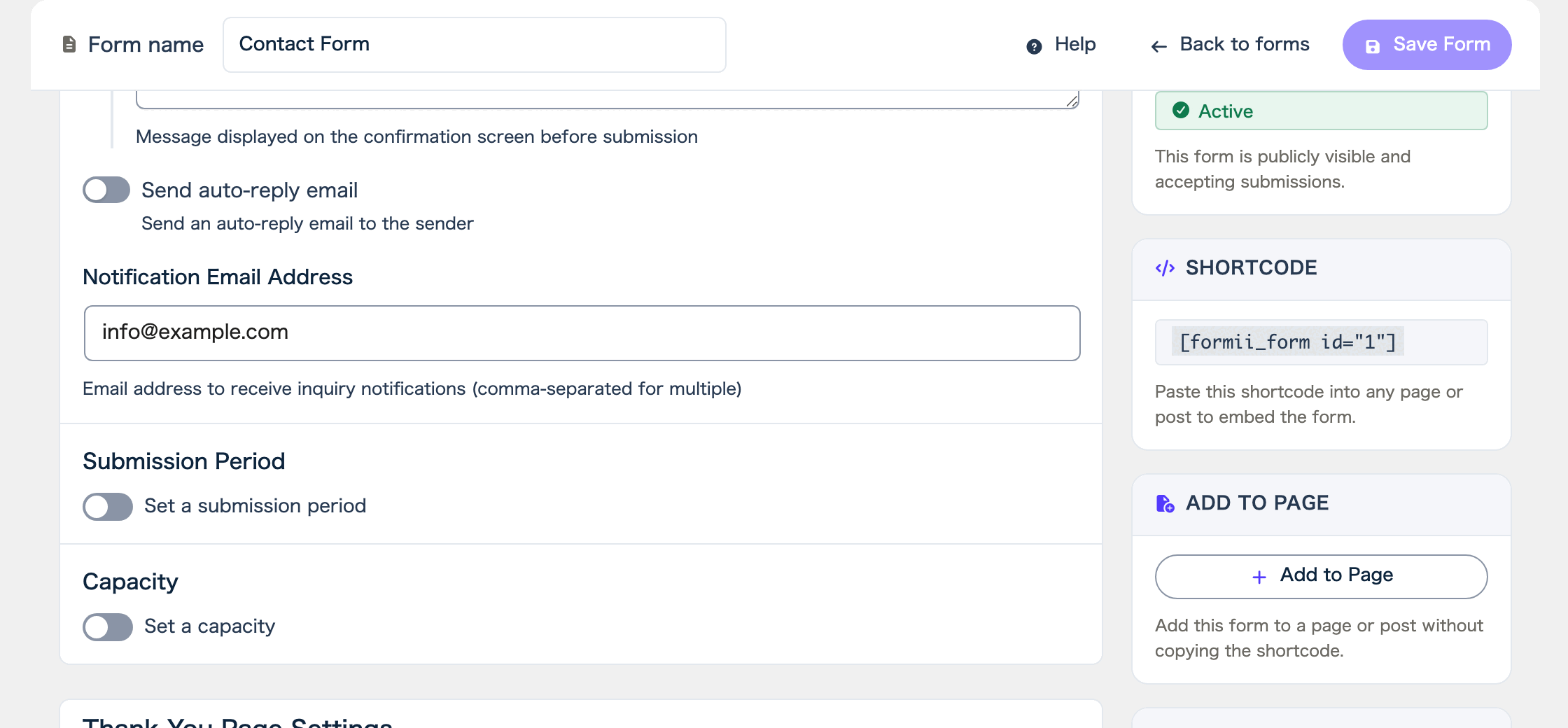
To notify more than one person, separate the addresses with commas. The help text under the field says “Email address to receive inquiry notifications (comma-separated for multiple)”.
Choose the recipient for the whole site
The Settings screen holds the recipient that every form shares. A form with no recipient of its own notifies this address.
- In the WordPress admin, open Inquiry Management → Settings.
- In “Basic Settings”, enter the address that should receive notifications in “Admin Email Address”.
- Click “Save changes”.
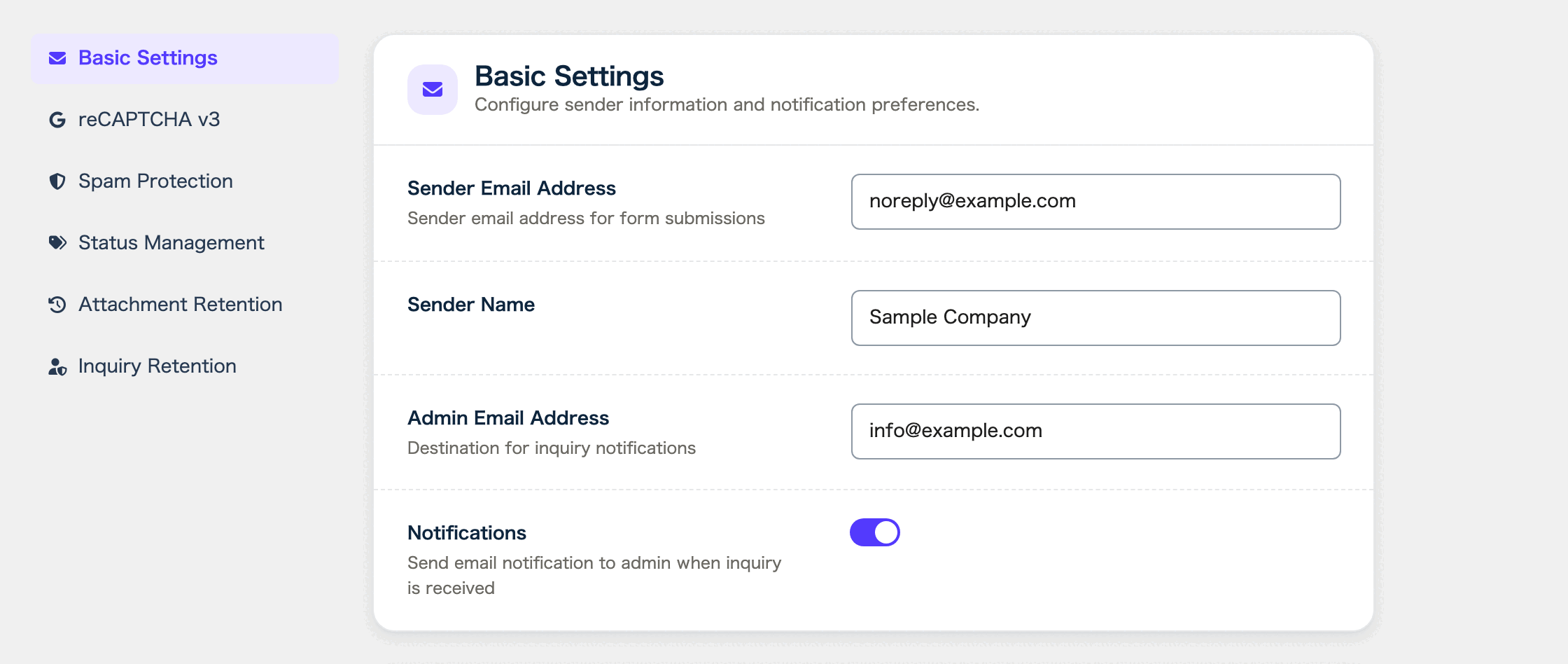
The help text under “Admin Email Address” says “Destination for inquiry notifications”.
How the recipient is chosen
Formii looks for the recipient in this order and uses the first one it finds.
- The form’s “Notification Email Address”
- “Admin Email Address” in “Basic Settings” on the Settings screen
- The site administrator’s email address registered in WordPress
Even if you fill in neither of the first two, the third address receives the notification, so it never goes nowhere.
If the recipient is correct but notifications still do not arrive, see What to do when notification or auto-reply emails do not arrive.
Turn notification emails off
If you do not want notification emails, turn off the “Notifications” switch in “Basic Settings” on the Settings screen. The help text under it says “Send email notification to admin when inquiry is received”.
When it is off, no form sends a notification email. This is true even for a form that has its own “Notification Email Address”.
Formii still accepts inquiries while notifications are off. You can read them in the Inquiry List in the admin.
What the email contains
The subject has the form “[Site Name] [Form Name] New inquiry received”.
When the visitor entered an email address, it is set as the reply-to address. If you reply to the notification, the reply goes straight to the visitor.
FAQ
- I do not receive notification emails. What should I check?
- First, check that “Notifications” is turned on in “Basic Settings” on the Settings screen. Next, check that the recipient address is correct. If they still do not arrive, look in your spam folder.
- Can I notify more than one person?
- Yes. Enter the addresses in “Notification Email Address” separated by commas.
- What happens if I enter both a per-form recipient and a site-wide recipient?
- The per-form recipient is used. The site-wide recipient does not receive the notification.
Related articles
Formii is free to get started
The confirmation screen and inquiry management are included in the free version.