How to preview and publish a form
Last updated:
What you'll learn
- Learn how to check how your form looks in the preview.
- Understand the difference between “Save Form” and switching between “Active” and “Draft”.
- See how a draft form appears to visitors and to administrators.
Check the form in the preview
Before you publish a form, you can check how it looks in the preview.
- In the form editor, choose “Preview” from the tabs at the top.
- Check the order of the fields and the wording of the labels.
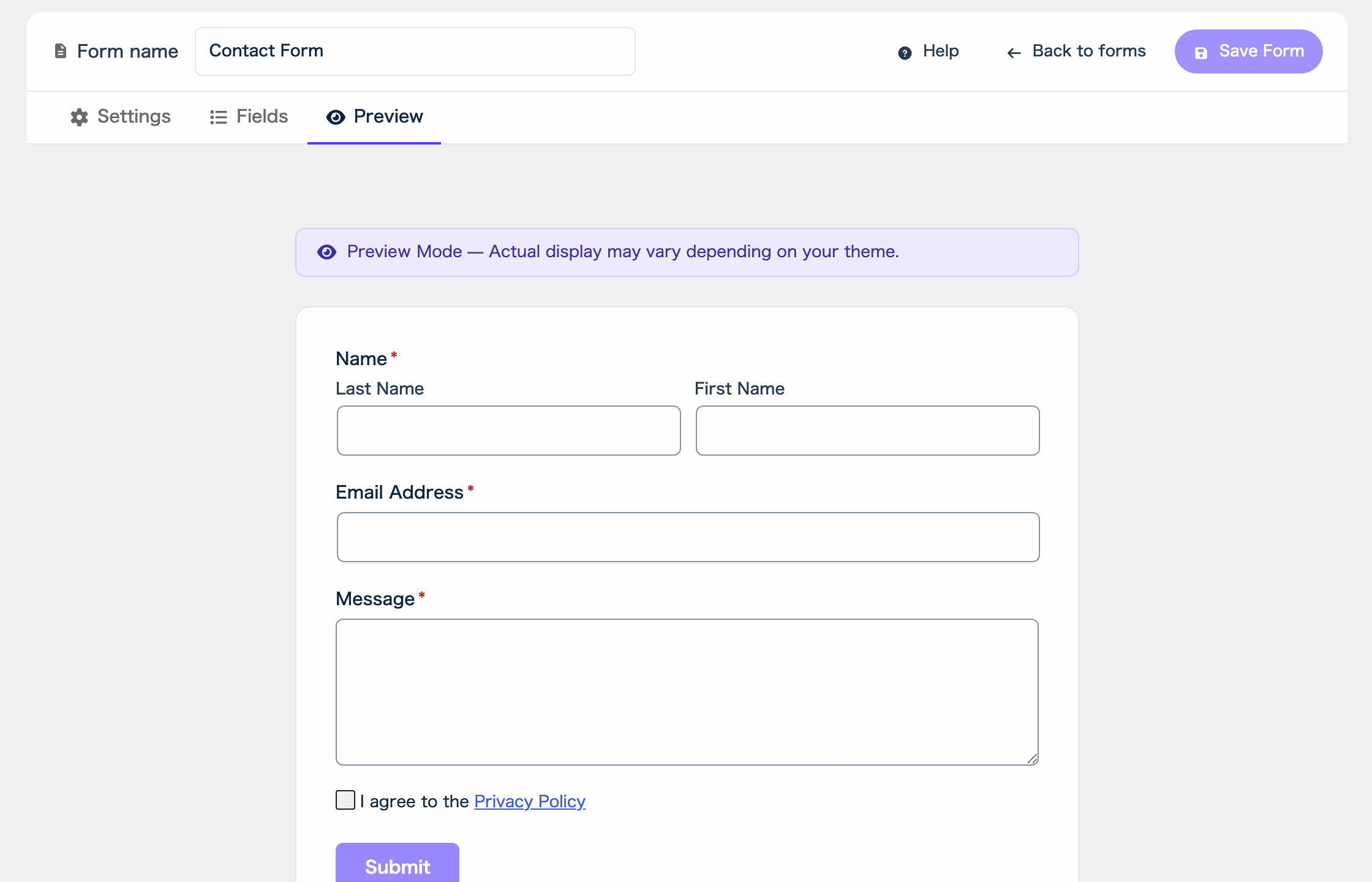
The top of the preview says “Preview Mode — Actual display may vary depending on your theme.” How the form looks on your site depends on your theme.
You cannot click the submit button in the preview, so you cannot test a submission there. Check how the form actually behaves on the page after you publish it.
When the form has no fields, the preview says “No fields added”. Add fields on the Fields tab, and they appear in the preview.
Save the form
After you change fields or settings, click “Save Form” at the top right of the screen.
While there are changes, the top of the screen shows “Unsaved changes”. After saving, it changes to “Saved”.
Changes you make on the Settings tab also do not take effect until you click “Save Form”.
Publish the form
To show the form to visitors, set the publication status to “Active” and add the form to a page.
- In the form editor, open the “Settings” tab.
- In “Publication Status” on the right, check that the button says “Draft”, then click it.
- The button changes to “Active”, and the screen says “This form is publicly visible and accepting submissions.”
- In the “Shortcode” box on the same side, click the code itself (it looks like [formii_form id="..."]). Clicking it copies the shortcode.
- Paste the copied shortcode into the page where you want the form to appear.
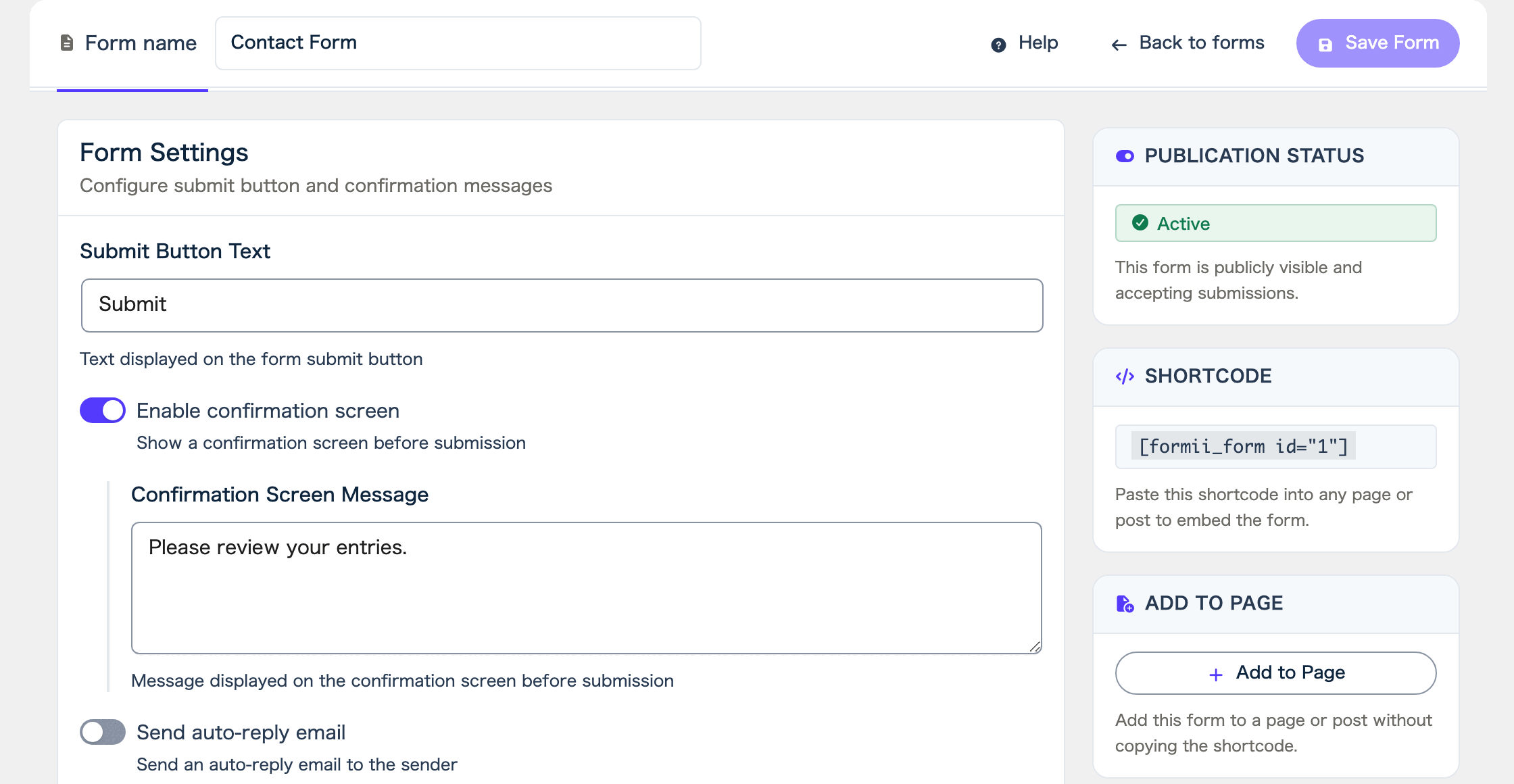
Switching the status takes effect the moment you click the button, separately from “Save Form”. Adding a form with a shortcode explains how to add the shortcode to a page.
You can also switch between “Active” and “Draft” with the button in the “Status” column of the Forms list.
Return a form to draft
To stop publishing a form, click the “Publication Status” button again. The button goes back to “Draft”.
A draft form is not shown to visitors and does not accept submissions. Even if the shortcode is still on a page, visitors see nothing. The spot where the form was stays empty.
While you are logged in as an administrator, you can still see the draft form on the page. This lets you check how it looks on the real page before you publish it.
FAQ
- Does “Save Form” publish the form?
- No. Saving does not change the publication status. To publish the form, set it to “Active” with the “Publication Status” button.
- I set the form to “Active”, but it does not appear on the page.
- Check that you pasted the shortcode into the page where you want the form. Also check that the ID in the shortcode matches the form’s ID.
- Can I stop accepting submissions temporarily?
- Yes. Set “Publication Status” back to “Draft”. The form is hidden from visitors and does not accept submissions. When you want to resume, switch it to “Active”.
Related articles
- Confirmation screen before submission
- Adding a form with a shortcode
- Choosing a page to display after submission
Formii is free to get started
The confirmation screen and inquiry management are included in the free version.