How to show a confirmation screen before submission
Last updated:
What you'll learn
- Learn what visitors can do on the confirmation screen before they submit.
- See that the confirmation screen is on by default.
- Learn how to turn the confirmation screen on or off for each form and how to change its message.
What the confirmation screen is
The confirmation screen shows visitors what they entered after they click the submit button, before anything is sent. Visitors can look over their entries and catch typos or missing information. The confirmation screen is available in the free version.
When the confirmation screen is on, a submission goes like this.
- The visitor fills in the form and clicks the submit button.
- If there are no errors, the form changes to the “Review Your Input” screen on the same page. It lists each field with what the visitor entered.
- To make changes, the visitor clicks “Back”. Everything they entered is still there.
- If everything looks right, the visitor clicks the submit button on the confirmation screen. The inquiry is sent at this point.
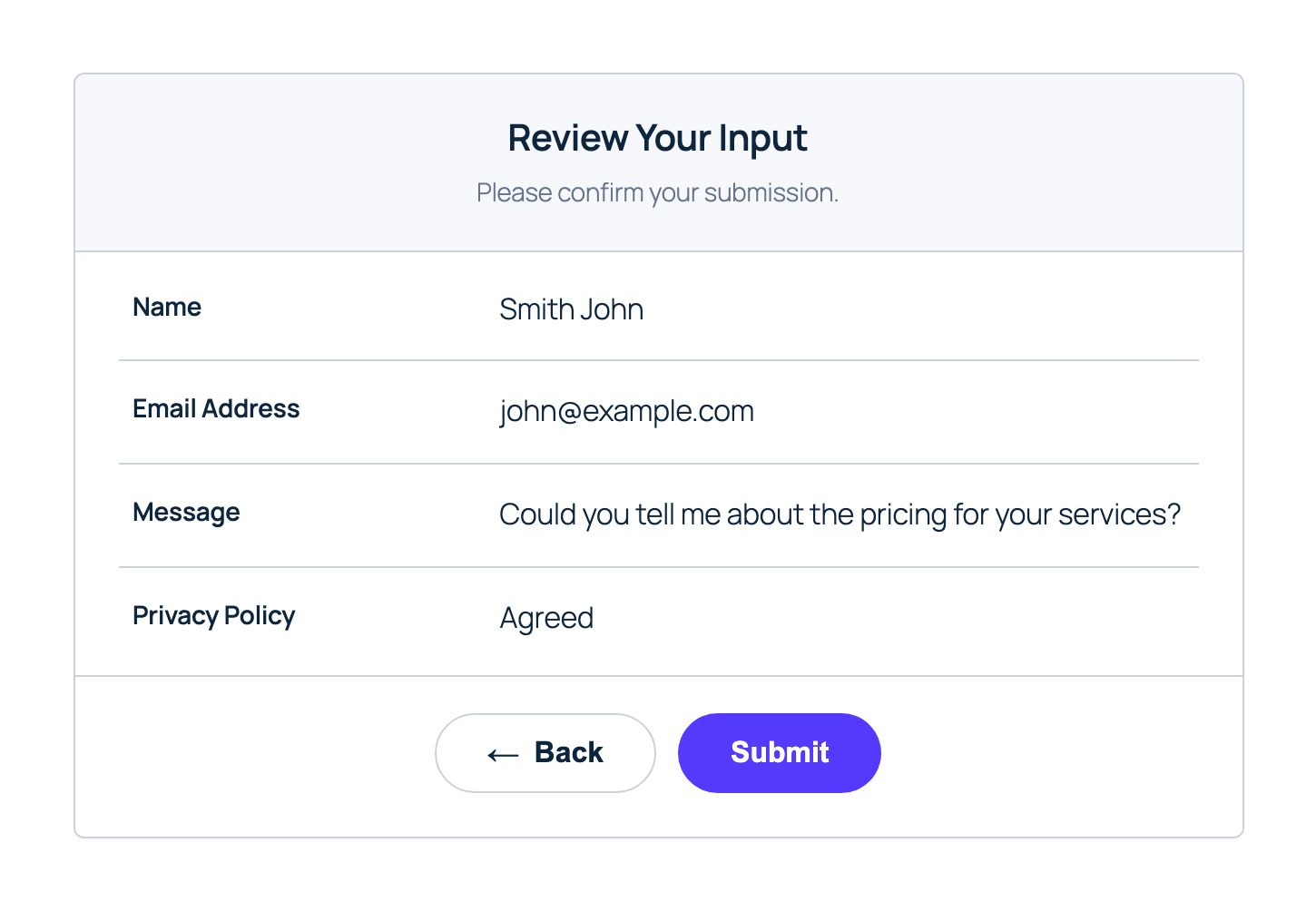
If there is an error, such as an empty required field, the confirmation screen does not appear. An error message appears at the top of the form instead.
The submit button on the confirmation screen uses the same text as the form’s submit button. You can change that text in “Submit Button Text” on the Settings tab.
Default setting
The confirmation screen is on by default. A new form shows it without any setup.
By default, the message on the confirmation screen is “Please confirm your submission.”
If a form should not use the confirmation screen, turn it off with the steps below.
Turn it on or off
You turn the confirmation screen on or off for each form.
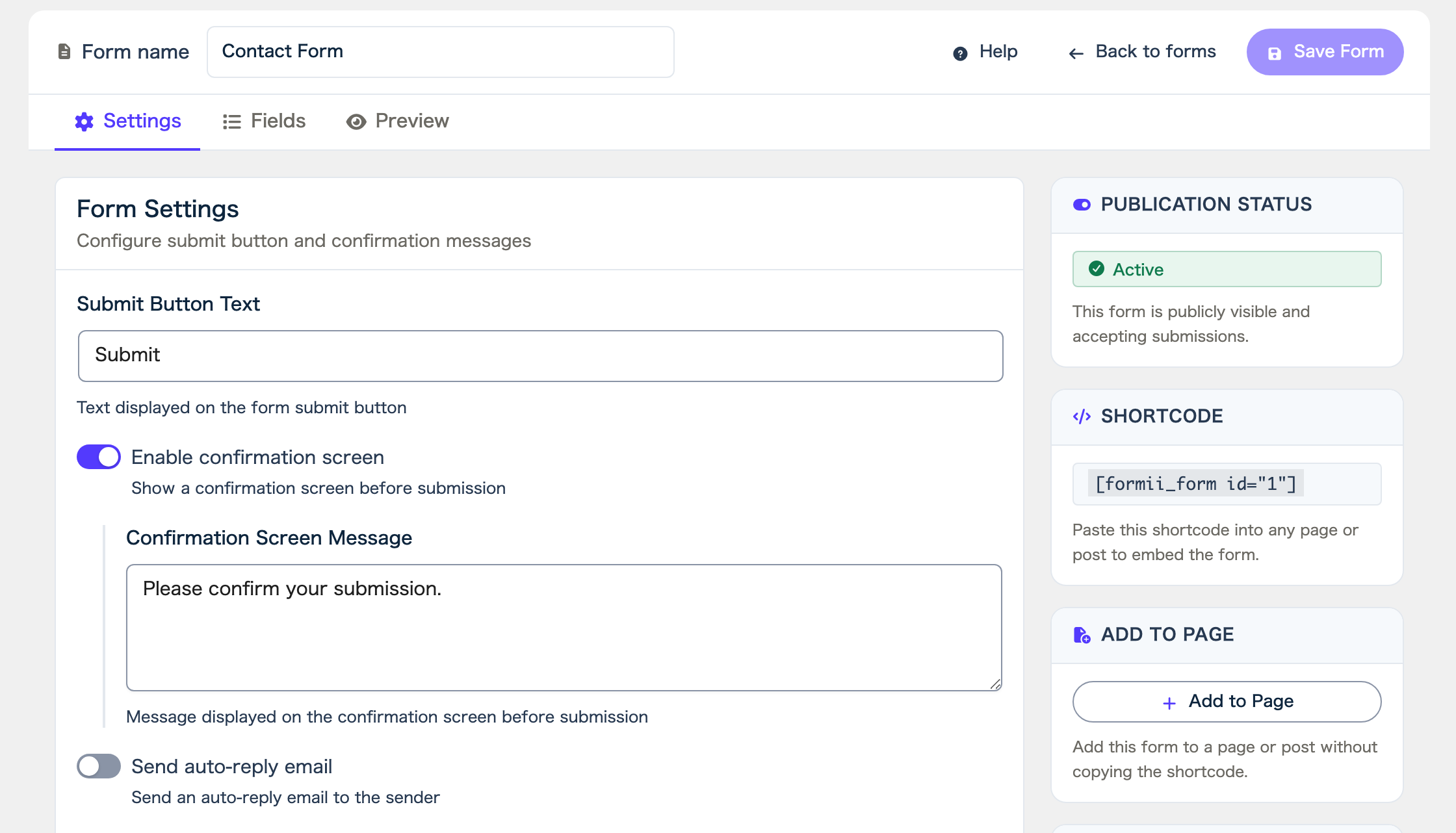
- In the form editor, open the “Settings” tab.
- Under “Form Settings”, click the “Enable confirmation screen” switch to turn it on or off.
- Click “Save Form” at the top right of the screen.
When the confirmation screen is off, the inquiry is sent as soon as the visitor clicks the submit button.
When it is on, the “Confirmation Screen Message” box appears below the switch. The text you enter there appears on the confirmation screen, below the “Review Your Input” heading. Line breaks appear as you typed them.
After you change the setting, open the published page, click the submit button, and check the confirmation screen. You cannot click the submit button in the preview, so the confirmation screen does not appear there. Previewing, publishing, and saving drafts explains the preview.
FAQ
- Do I need a paid plan to use the confirmation screen?
- No. The confirmation screen is available in the free version.
- I want the form to submit right away, without a confirmation screen.
- In the form editor, open the Settings tab, turn off “Enable confirmation screen”, and click “Save Form”. The form then submits as soon as the visitor clicks the submit button.
- Can I change the text on the confirmation screen?
- You can change the message below the heading in “Confirmation Screen Message”. The submit button uses the same text as “Submit Button Text”. You cannot change the “Review Your Input” heading or the text of the “Back” button.
Related articles
- Previewing, publishing, and saving drafts
- Choosing a page to display after submission
- Auto-reply emails
Formii is free to get started
The confirmation screen and inquiry management are included in the free version.