Using “Add to Page”
Personal and aboveLast updated:
This feature is available on the Formii Pro Personal plan and above.Compare plans
What you'll learn
- Learn how to add a form to a page without pasting a shortcode.
- See the steps for adding to an existing page or post, and for creating a new page with the form.
- Know which kinds of pages you can add to, and what to watch for.
What is “Add to Page”?
“Add to Page” lets you add a form to a page or post from the form editor. You do not have to copy and paste the shortcode.
This feature is available on the Personal plan and above. In the free version, use a shortcode to add the form to a page.
You can add a form to a page or a post. On a site with other public content types that have a content editor, you can choose those too.
Open “Add to Page”
- In the WordPress admin, open Inquiry Management → Form Builder.
- Click “Edit” on the form you want to add to a page.
- Choose the “Settings” tab at the top.
- In the “Add to Page” box on the right, click the “Add to Page” button.
- The “Add to Page” dialog opens.
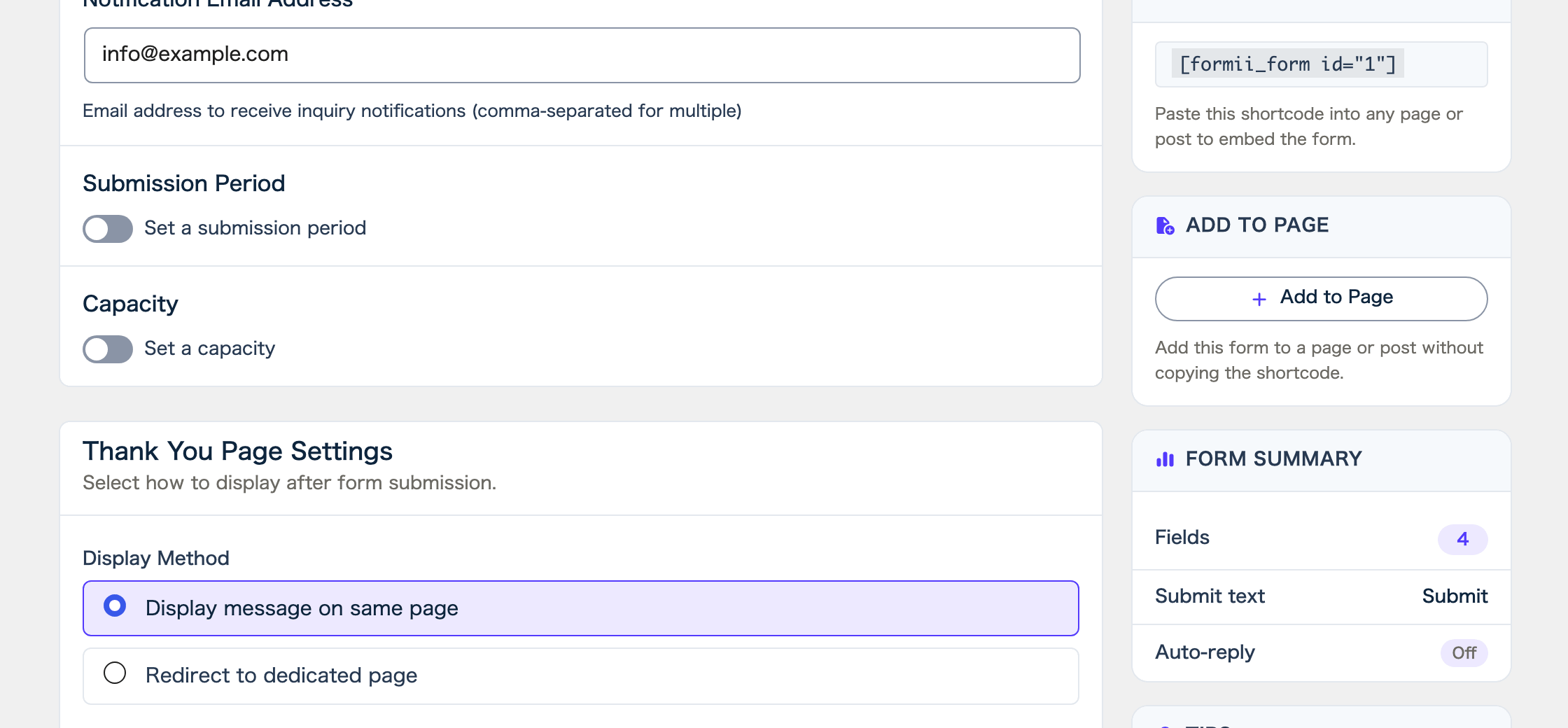
The box says “Add this form to a page or post without copying the shortcode.” Unless you are on the Personal plan or above, the button is disabled.
When the form’s publication status is “Draft”, the dialog says “This form is a draft. It won’t appear on the page until you publish it.” You can still add the form, but visitors cannot see it until you set it to “Active”.
Add the form to an existing page or post
This adds the form to a page or post you already have.
- In the “Add to Page” dialog, choose the “Add to an existing page or post” tab.
- Select the page or post from the list. To find it, type part of its title in “Search pages and posts”.
- Click “Add to end of page”.
- The dialog says “Form added to the page.” Use “View page” to check the page, or “Edit page” to open its editor.
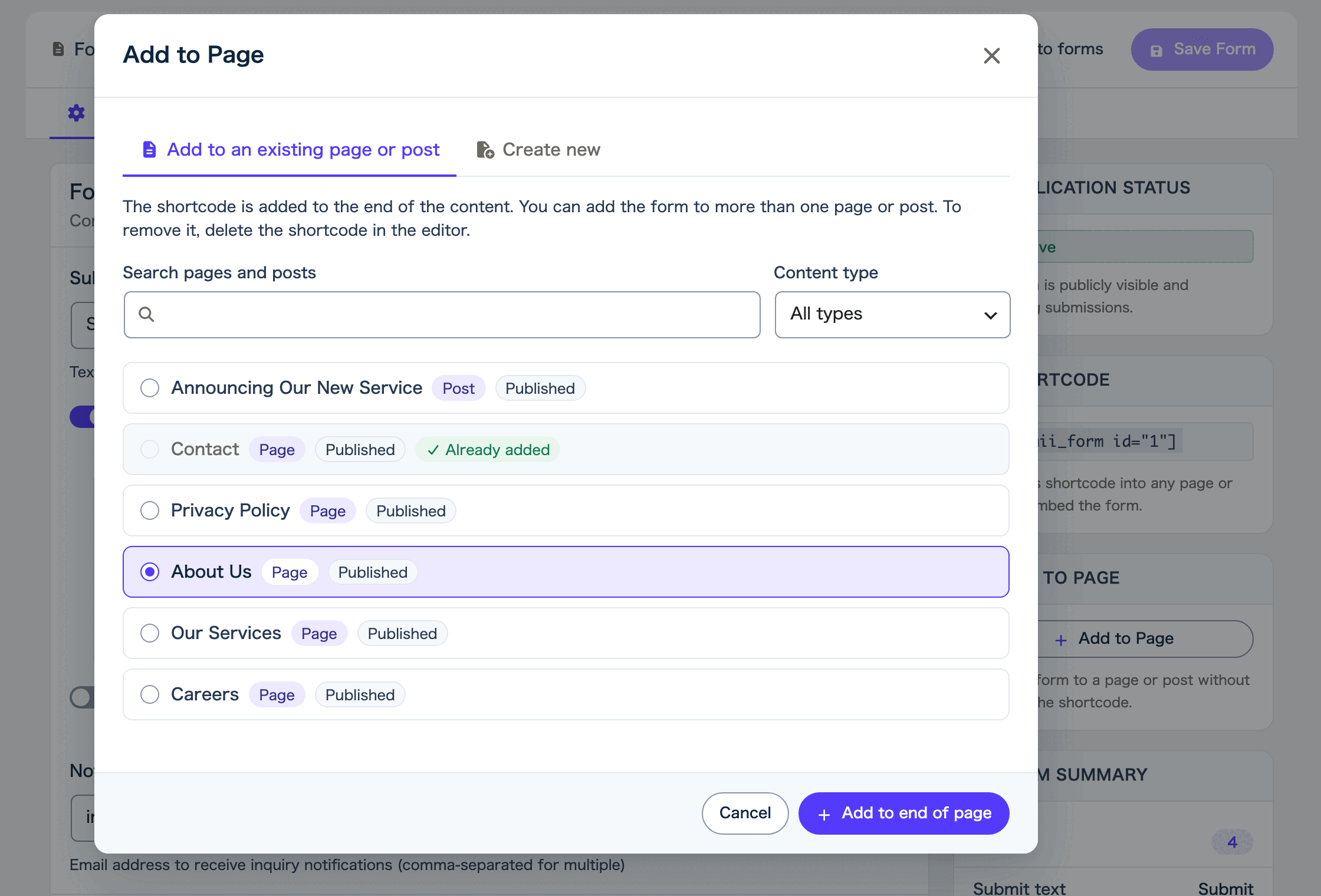
The form is added at the very bottom of the page content. To move it, open “Edit page” and move the shortcode block.
How to read the list
The list shows pages and posts in many states, such as published, draft, and private, with the most recently updated first. It shows 20 at a time. Click “Load more” to see the rest.
- Next to each title, a label such as “Published” or “Draft” shows its state.
- On a site with more than one content type you can add to, “Content type” lets you filter from “All types”.
- A page marked “Already added” already contains this form, so you cannot select it.
- A page that another user is editing shows “This page is being edited by …” and cannot be selected. Try again after they finish.
Create a new page with the form
This creates a new page that already contains the form.
- In the “Add to Page” dialog, choose the “Create new” tab.
- On a site with more than one content type, choose the type you want in “Create as”.
- Type the page title in “Title”. It starts out as the form’s name.
- Click “Create draft and edit”.
- Formii creates a draft page that contains the form and opens its editor.
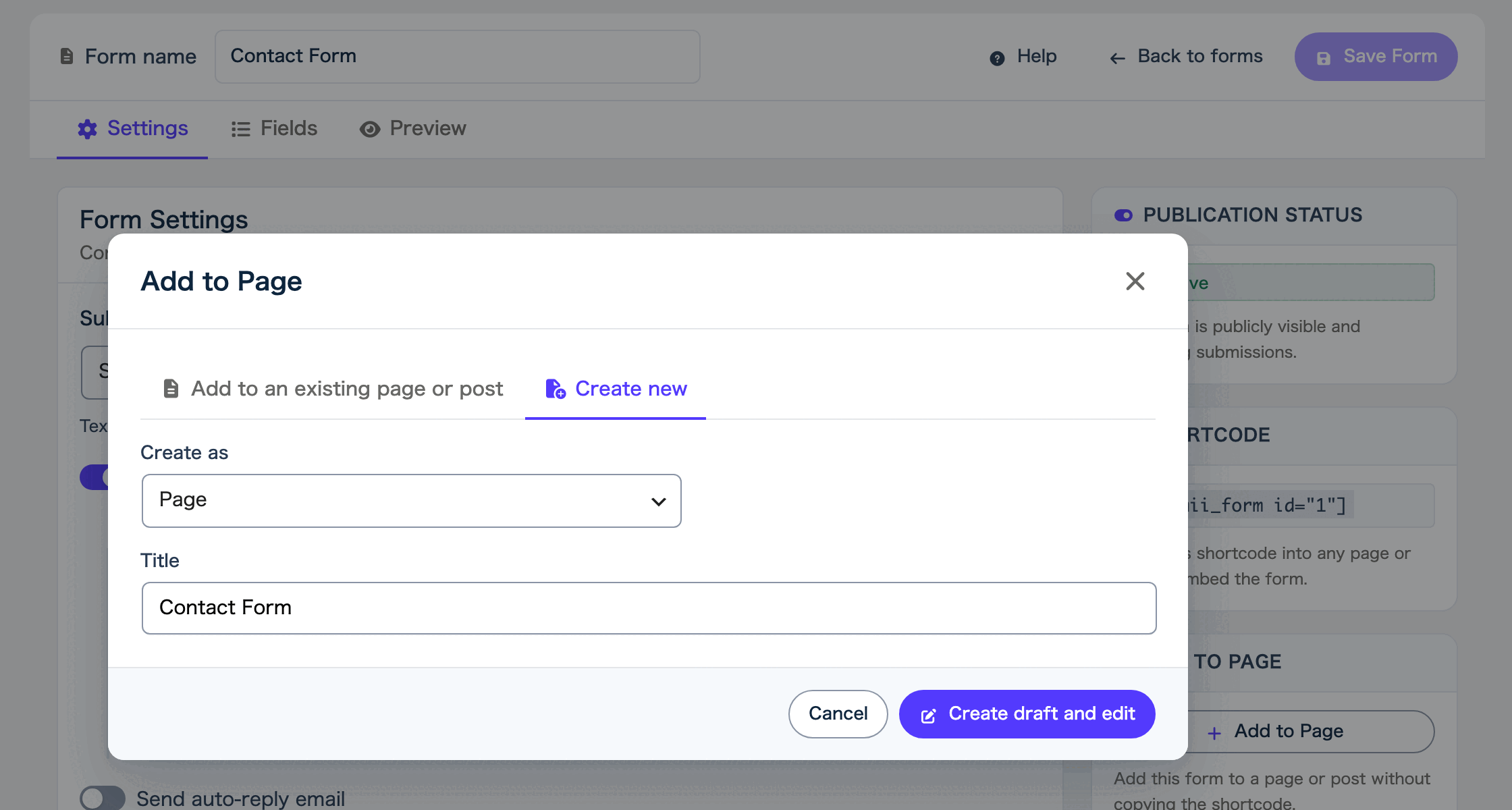
The new page is a draft. When it is ready, click “Publish”.
If the form has unsaved changes, an “Unsaved changes” confirmation appears. If you click “Continue”, the form’s changes are lost. To keep them, click “Cancel”, save the form, and try again.
Remove the form from a page
The “Add to Page” dialog has no button to remove a form. To remove it, open the page in the editor and delete the shortcode.
You can add a form to more than one page or post.
FAQ
- I cannot click the “Add to Page” button.
- This feature is available on the Personal plan and above. In the free version, paste the shortcode instead. The button is also disabled while the form has not been saved yet, so click “Save Form” first.
- Does adding the form change the rest of the page?
- No. Formii only adds the form’s shortcode at the very bottom of the existing content.
- Can I add the same form to the same page twice?
- No. A page that already contains the form is marked “Already added” and cannot be selected.
Related articles
- Adding a form with a shortcode
- Choosing a page to display after submission
- Previewing, publishing, and saving drafts
This feature is available on the Formii Pro Personal plan and above.
You can start with the free version of Formii. Compare features and prices for each plan on the pricing page.