Adding a form with a shortcode
Last updated:
What you'll learn
- Learn the most basic way to show a form on a WordPress page.
- See how to copy the shortcode and paste it into a page.
- Know what to check when the form does not appear.
What is a shortcode?
A shortcode is a short piece of code that you write in a WordPress page or post to show a set feature. In Formii, a shortcode of this form shows a form.
[formii_form id="1"]
The number after “id” is the ID of the form you want to show. Each form has its own ID.
Shortcodes are available in the free version.
Copy the shortcode
You do not need to write the shortcode yourself. You can copy it from the admin screen.
- In the WordPress admin, open Inquiry Management → Form Builder.
- Click “Edit” on the form you want to show.
- Choose the “Settings” tab at the top.
- In the “Shortcode” box on the right, click the code itself (it looks like [formii_form id="..."]). Clicking it copies the shortcode.
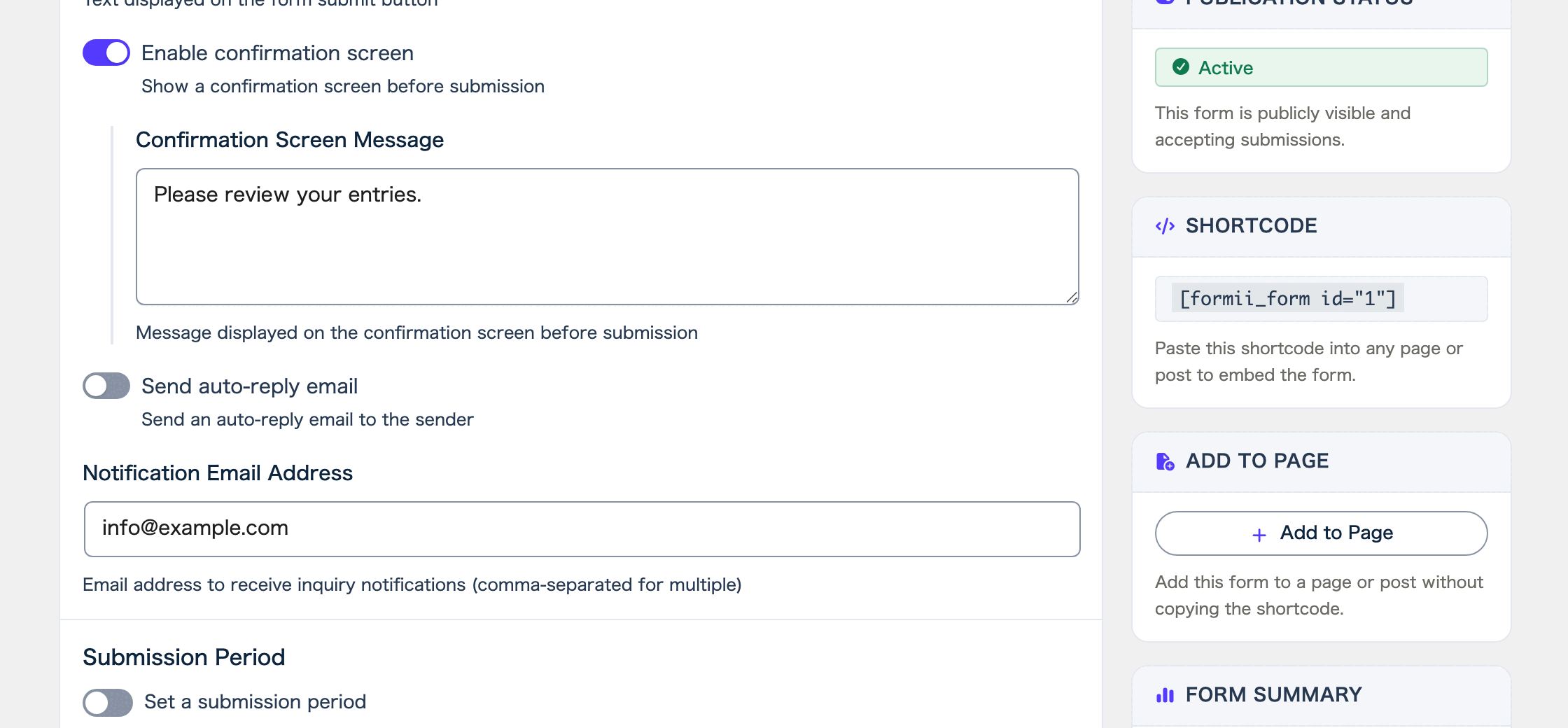
The “Shortcode” column in the Forms list also shows each form’s shortcode. The “ID” column in the same table shows the form’s ID.
Paste it into a page
Paste the copied shortcode into the page or post where you want the form.
- In the WordPress admin, open Pages → Add New. To add the form to an existing page, open that page from the Pages list instead.
- In the block editor, add a “Shortcode” block where you want the form to appear.
- Paste the copied shortcode into the block.
- “Publish” or “Update” the page.
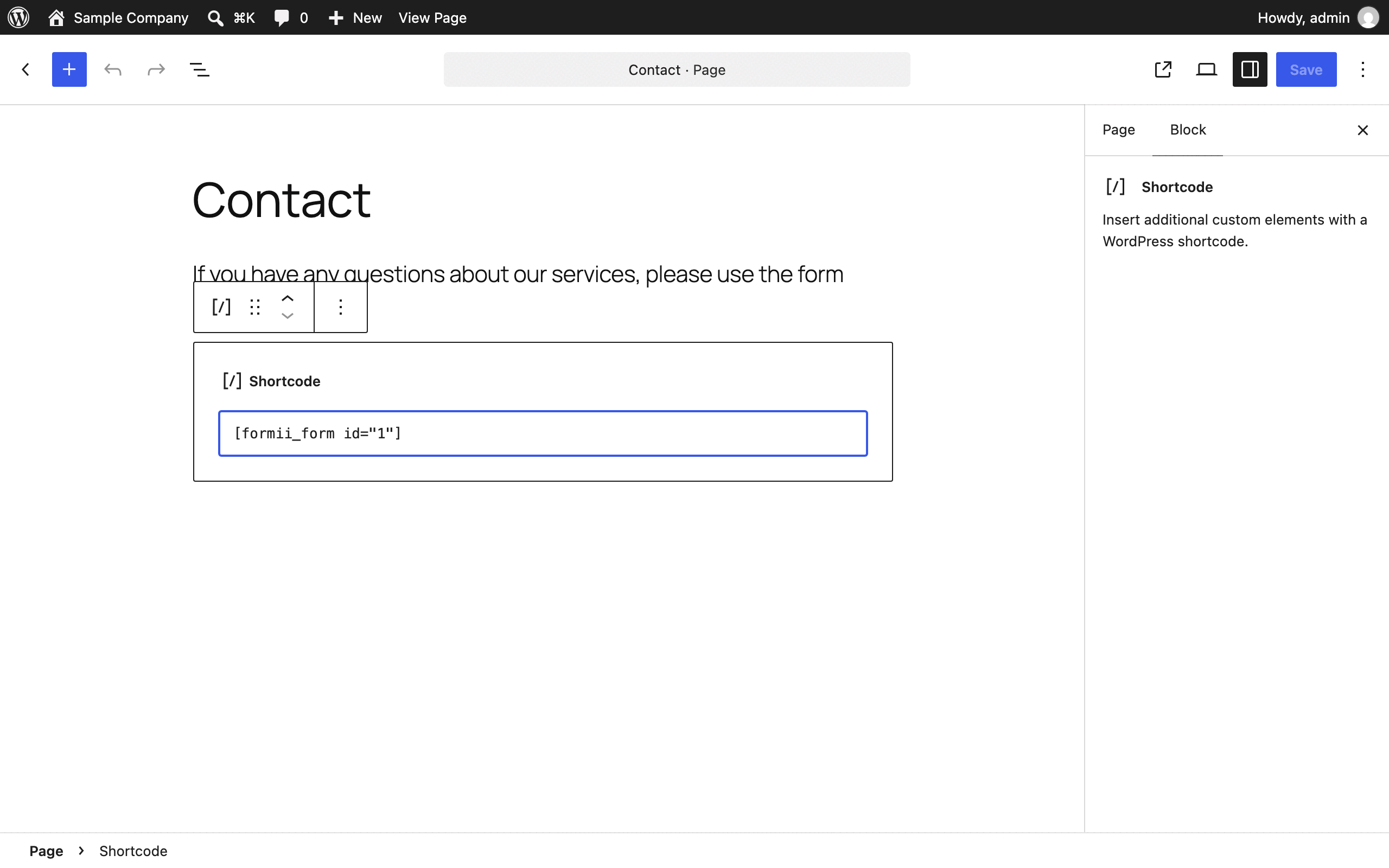
In the classic editor, paste the shortcode as it is, at the spot in the content where you want the form.
You can show a form in a post in the same way.
On the Personal plan and above, you can also add a form to a page without pasting the shortcode. Using “Add to Page” explains how.
Check the page
Open the page and check that the form appears. If the form’s publication status is still “Draft”, visitors do not see it. While you are logged in as an administrator, you can see a draft form too.
Previewing, publishing, and saving drafts explains how to switch the status.
You can also show more than one form on a page. Paste each form’s shortcode into the page.
When the form does not appear
While you are logged in as an administrator, a problem with the shortcode shows a message that starts with “Formii Error:” in place of the form.
- If it says “Form ID is not specified.”, the shortcode has no “id”, or the number in “id” is not valid.
- If it says “The specified form was not found.”, no form has that ID. Check that you did not use the ID of a form you deleted.
Visitors do not see these messages. If you pasted the shortcode but nothing appears, open the page while logged in as an administrator and read the message.
Paste the shortcode exactly as you copied it, with every character. If the “[”, the “]”, or the quotation marks are missing, the form does not appear.
FAQ
- Where can I find a form’s ID?
- In the “ID” column of the Forms list. The “Shortcode” box on the Settings tab of the form editor also shows the code with the ID in it.
- Can I show the same form on more than one page?
- Yes. Paste the same shortcode into each page where you want the form.
- Can I add a form to a page without pasting the shortcode?
- Yes. On the Personal plan and above, use “Add to Page” in the form editor to add a form without pasting the shortcode.
Related articles
- Using “Add to Page”Personal and above
- Choosing a page to display after submission
- Previewing, publishing, and saving drafts
Formii is free to get started
The confirmation screen and inquiry management are included in the free version.