How to export inquiries as CSV
BusinessLast updated:
This feature is available on the Formii Pro Business plan.Compare plans
What you'll learn
- Learn how to save inquiries as a CSV file.
- Choose between the UTF-8 and Shift_JIS encodings.
- See which columns the CSV contains and which plan you need.
What CSV export is
CSV export saves the inquiries you have received as a CSV file on your computer. You can open a CSV file in spreadsheet software such as Excel or Google Sheets.
This feature is available on the Formii Pro Business plan. Only users with the WordPress Administrator role can use it. Editors and Authors cannot export CSV.
Export inquiries as CSV
- In the WordPress admin, open Inquiry Management → Inquiry List.
- Select the inquiries you want with the checkboxes on the left of the list. The checkbox in the header row selects everything on the page.
- A bulk action bar appears at the bottom of the screen, showing the number you selected, such as “3 selected” (if you selected 3). In the encoding field on the bar, choose “UTF-8 (BOM)” or “Shift_JIS”.
- Click “Export (3)”. The button shows the number of inquiries you selected (3 in this example).
- Your browser downloads the CSV file.
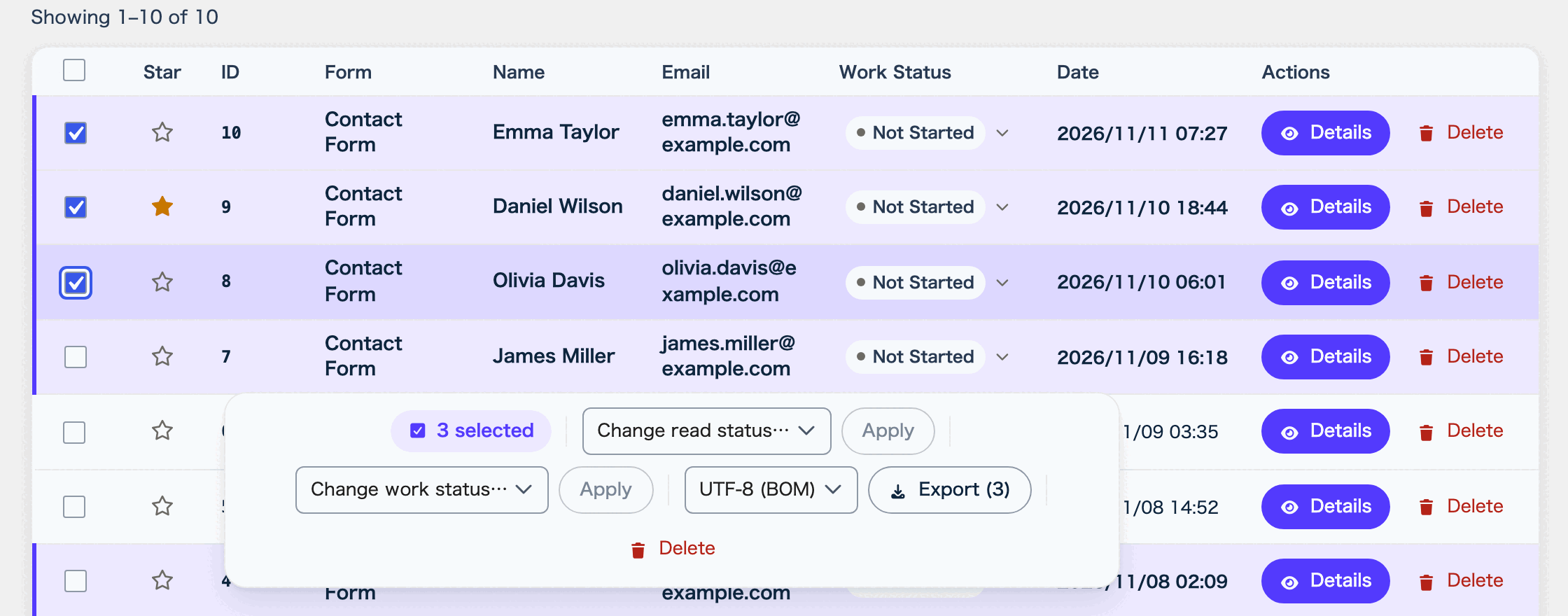
While no inquiry is selected, you cannot click “Export”. Only the inquiries you selected are exported.
The file name includes the date and time of the export, as in “entries_2026-11-12_153000.csv”. If the download fails, you see “Could not export the CSV. Try again.”
To learn how to filter the list, see Viewing inquiries and marking them as read. Filtering first and then using the checkbox in the header row makes it easier to pick the inquiries you need.
Choose an encoding
You can choose between two encodings.
- “UTF-8 (BOM)” is selected by default. It adds a marker called a BOM to the start of the file.
- “Shift_JIS” is an encoding that older Japanese software has used.
Start with the default, “UTF-8 (BOM)”. If Japanese text looks garbled in your spreadsheet software, export again with the other encoding.
What the CSV contains
The first row of the CSV holds the column names, and each following row holds one inquiry. The first eight columns are the same for every form.
- “Inquiry ID”
- “Form Name”
- “Submitted At”
- “Sender Name”
- “Email Address”
- “Read Status”
- “Work Status”
- “IP Address”
“Read Status” and “Work Status” contain the same words you see on screen, such as “Unread”, “Read”, and “Not Started”.
From the ninth column on, each field of the form gets its own column, named with the label you gave the field (such as “Name” or “Message”). If you export inquiries from several forms at once, the fields of every form appear as columns. A column is left empty when the inquiry’s form does not have that field.
An address goes into a single cell, as in “〒123-4567 東京都渋谷区神宮前1-2-3 Bldg 5F”. A consent checkbox shows “Agreed” when the person agreed. A file upload column holds the file name. Line breaks in text that people typed are replaced with spaces.
FAQ
- I cannot find the button.
- CSV export is a Business plan feature. On other plans, it does not appear on the bulk action bar. The bar itself appears once you select at least one inquiry in the list.
- I am not on the Business plan. Can I still export CSV?
- No. CSV export is not available on other plans. The CSV button does not appear on the bulk action bar.
- Some cells start with an apostrophe.
- When a cell starts with “=”, “+”, “-”, or “@”, Formii adds an apostrophe at the start. This stops spreadsheet software from running the text as a formula.
Related articles
- Saving inquiries in WordPress
- Viewing inquiries and marking them as read
- Status management and internal notesSmall Business and above
This feature is available on the Formii Pro Business plan.
You can start with the free version of Formii. Compare features and prices for each plan on the pricing page.