How to use work statuses and internal notes
Small Business and aboveLast updated:
This feature is available on the Formii Pro Small Business plan and above.Compare plans
What you'll learn
- Record how far you have got with each inquiry.
- Learn the four statuses you can use from the start, and how to change them.
- Leave internal notes that your team can share.
What work statuses and internal notes are
A work status is a label that shows how far you have got with an inquiry. It is separate from read and unread, and you use it to track replies and tasks.
An internal note is a note you attach to an inquiry. The person who sent the inquiry cannot see it. Use it to hand work over to other staff or to keep a record of what you did.
Both features are available on the Formii Pro Small Business plan and above. They appear in the Inquiry List.
The available statuses
You can use these four statuses from the start.
- “Not Started” is an inquiry you have not handled yet. Every new inquiry starts here.
- “In Progress” is an inquiry you are working on.
- “Completed” is an inquiry you have finished.
- “Spam” is an inquiry you have judged to be unwanted.
Each status appears as a colored badge. On the Business plan, you can also add your own statuses with a name and a color.
Change a status
- In the WordPress admin, open Inquiry Management → Inquiry List.
- Click the “Work Status” badge in the row you want to change.
- A menu opens. Choose the new status.
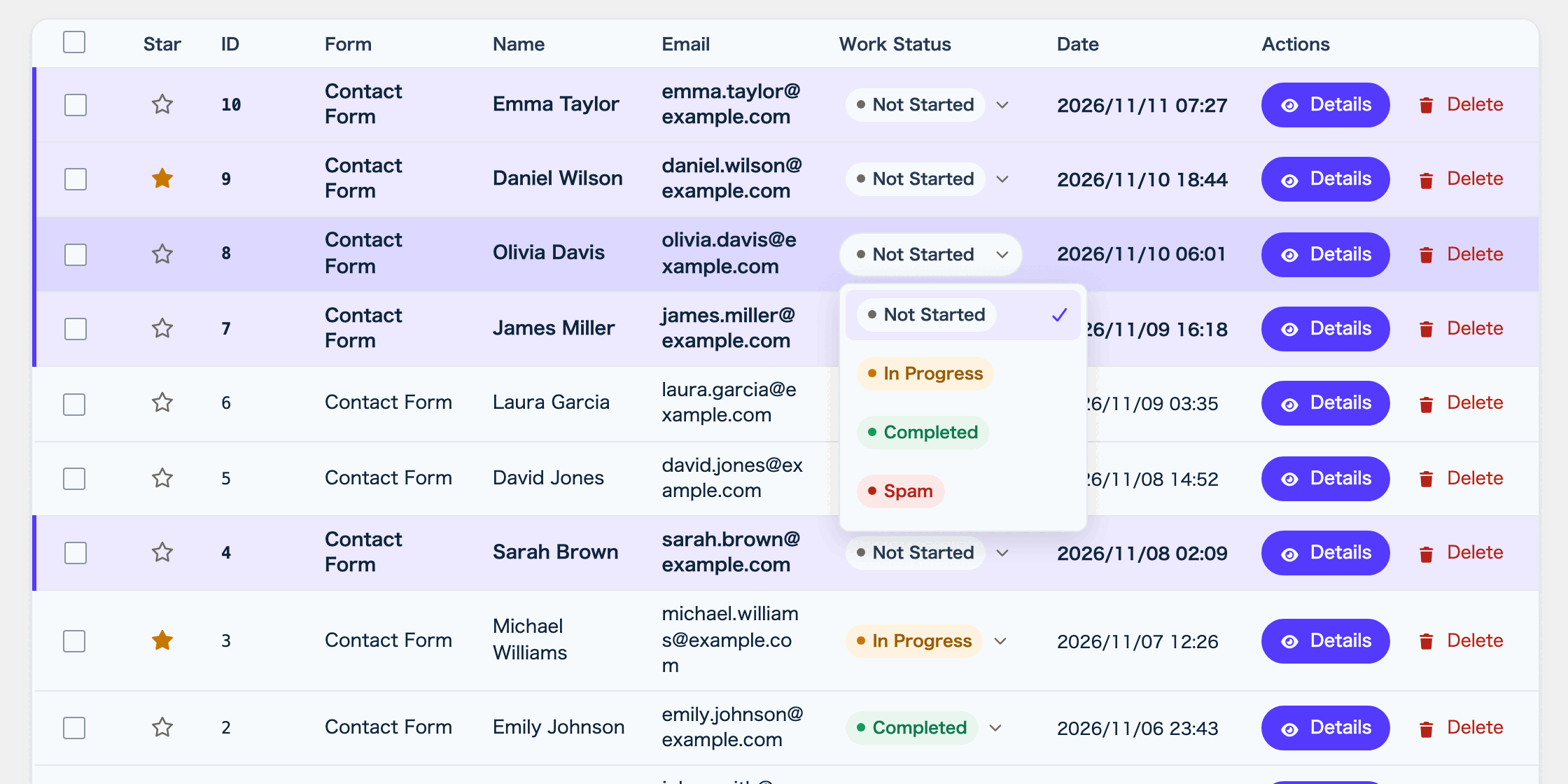
The details screen also has a “Work Status” field. You can change it there in the same way.
If the change fails, you see “Could not change the work status. Try again.” and the status returns to what it was.
Filter by status and change several at once
Choose a status in the “Work Status” field above the list to show only the inquiries in that status. Filtering by “Not Started” helps you find the inquiries that still need work.
You can also change the status of several inquiries at once.
- Select inquiries with the checkboxes on the left of the list. The checkbox in the header row selects everything on the page.
- A bar for bulk actions appears at the bottom of the screen, showing the number you selected, such as “3 selected” (if you selected 3).
- Choose a new status from “Change work status…”.
- Click “Apply”. When you see a message such as “3 inquiries updated”, you are done (if you selected 3).
Leave an internal note
- In the list, click “Details” on the inquiry you want to add a note to.
- Find the “Internal Notes” section.
- Type your note in “Add New Memo”. The field shows “Enter memo…” until you type.
- Click “Add Memo”. You can also press Ctrl+Enter (Command+Enter on a Mac).
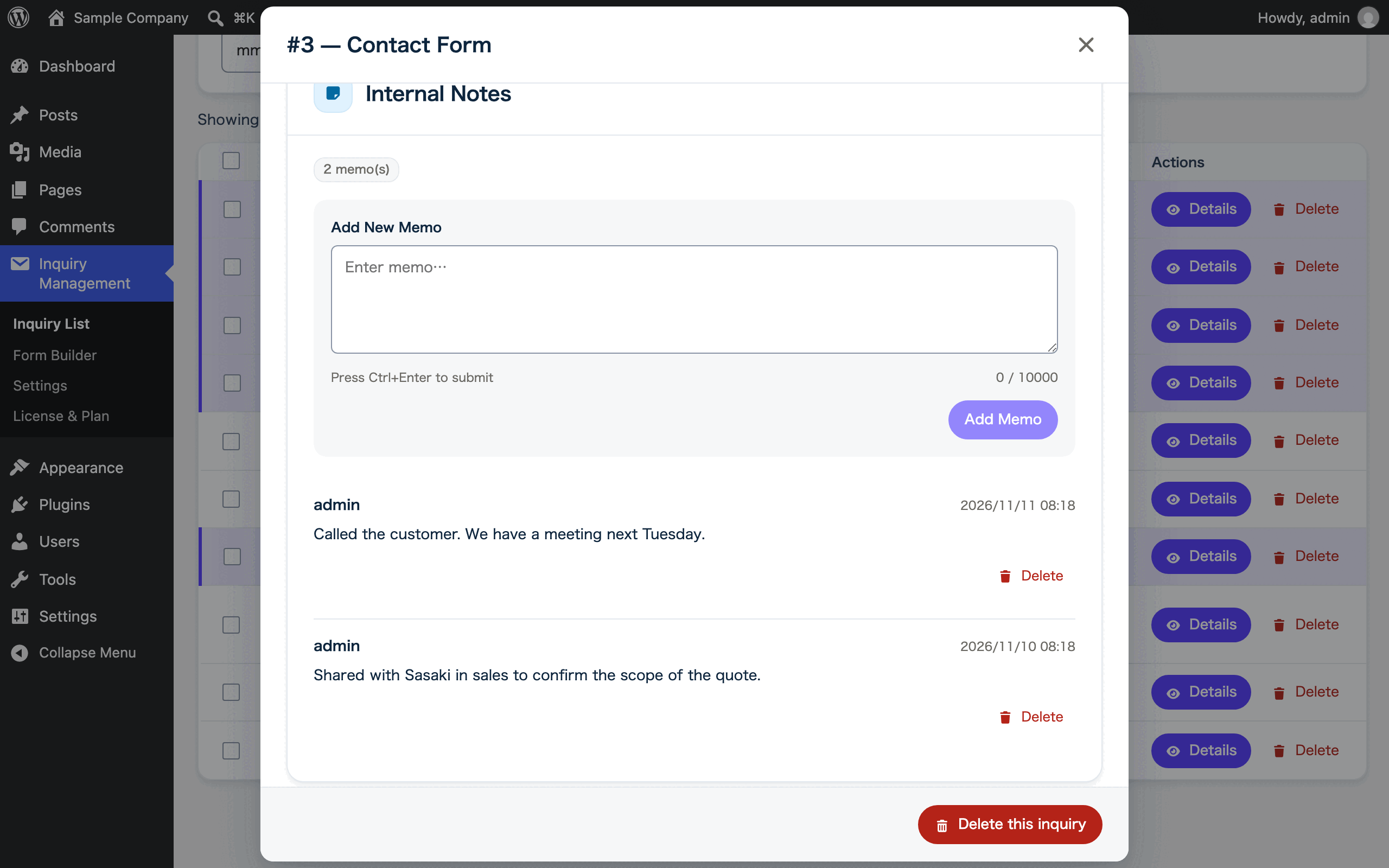
A note can be up to 10,000 characters. Each note is listed with the name of the person who wrote it and the date and time. As notes pile up, a count such as “3 memo(s)” appears (an example for 3 notes).
To remove a note, click “Delete” on the note and confirm. You can delete notes written by other administrators as well as your own.
Only WordPress users with the Administrator role can add and delete notes, because only administrators can open the inquiry list.
FAQ
- Can the person who sent the inquiry see internal notes?
- No. Only users who can see inquiries in the WordPress admin can read internal notes.
- What status do older inquiries have?
- An inquiry with no status set is shown as “Not Started”.
- Does changing the status send an email to the person who sent the inquiry?
- No. Changing the status does not send any email. It is for managing your work internally.
Related articles
This feature is available on the Formii Pro Small Business plan and above.
You can start with the free version of Formii. Compare features and prices for each plan on the pricing page.